If you want your product to stand out online, high-quality visual content is no longer optional—it’s essential. Whether you’re selling handmade crafts, tech gadgets, beauty items, or kitchen tools, image is the fastest way to build trust and encourage customers to click “Buy Now.” But what if you don’t have expensive cameras, studio lighting, or editing skills? CapCut’s Nano Banana Pro is a powerful AI-driven creative tool designed for product visuals. Though it’s known for generating ultra-clean, studio-style images, you can also use those assets to build stunning product images in minutes. With the help of CapCut’s web-based editing tools, you can turn simple prompts and photos into a polished image ad.
Table of Contents
Why Use CapCut Nano Banana Pro for Product Videos?
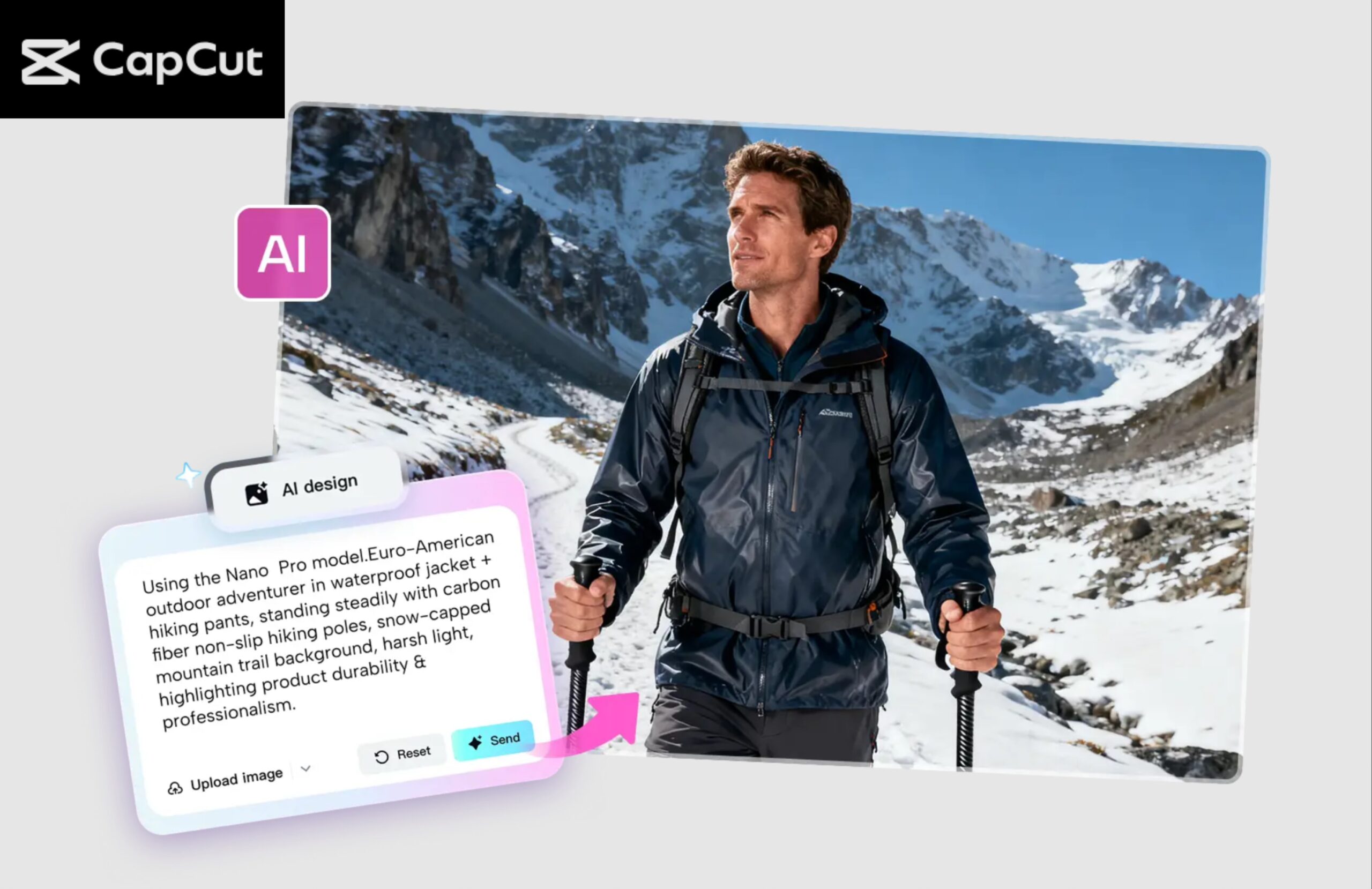
Before we get into the tutorial, here’s why this tool is becoming a favorite among marketers, small businesses, and online sellers:
AI-generated studio-quality visuals
Nano Banana Pro can turn basic product photos into clean, crisp, and professional visuals that look like they were shot in a real studio.
Perfect for e-commerce and social media
Whether you sell on Amazon, Etsy, Shopify, TikTok Shop, or Instagram, clean visuals help your products convert better.
Works online—no software to install
Everything takes place directly in your browser. No downloads. No complex setup.
Also Read


Fast, easy, and beginner-friendly
You can generate images, upload them into CapCut’s editor, add text, music, transitions, and export a finished product video in minutes.
Customizable to your brand
With AI prompts, reference images, and editing tools, you can match your brand style, color palette, and content theme.
How to Create Product Videos Using CapCut Nano Banana Pro
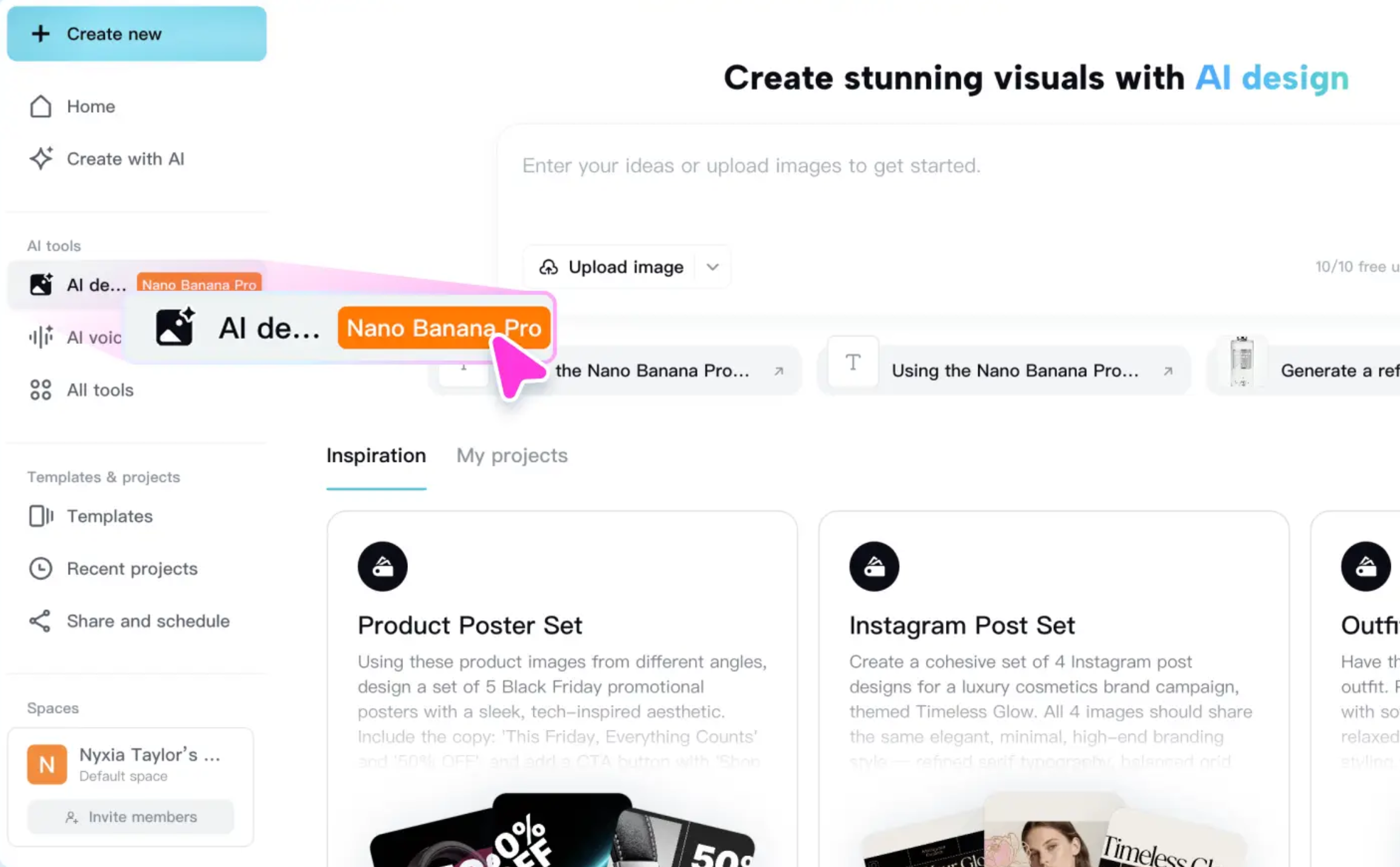
Step 1: Access CapCut AI Design Online
Click the button on the Nano Banana Pro page to open CapCut’s AI Design tool online. This workspace is where you will generate clean product visuals, backgrounds, and image variations for your video. You don’t need any technical experience to get started. Everything is laid out clearly: a prompt box, a reference image upload option, and a real-time preview window. This tool lets you quickly turn an ordinary product photo into:
- A white-background e-commerce image
- A stylized promotional shot
- A lifestyle scene
- A high-resolution close-up
- Multiple angles for video transitions
This is your starting point for creating all the assets that will appear in your product video.
Step 2: Enter Prompt and Add Reference Photo
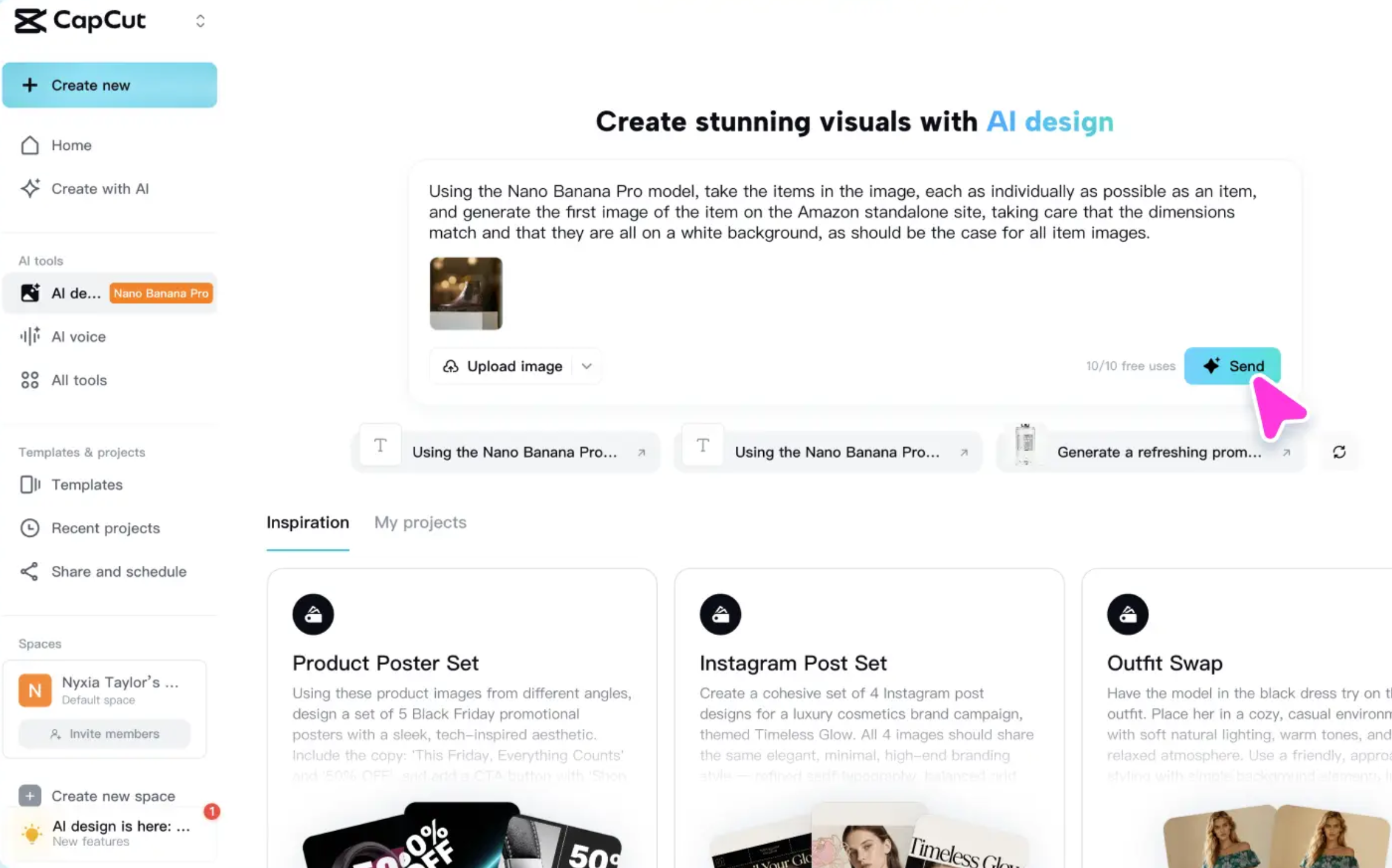
Next, type your design prompt into the text box. This is where AI follows your instructions to generate clean, sharp visuals of your product. You can upload a reference image if you want the AI to maintain:
- Product shape
- Materials
- Color accuracy
- Brand identity
- Composition
This is especially useful for items like electronics, cosmetics, handmade goods, or any object that must look exactly like the real product when showcased in a video. Try CapCut AI Video Maker to make amazing AI content for your business.
Example Prompt You Can Use
“Using the Nano Banana Pro model, take the items in the image, each as individually as possible as an item, and generate the first image of the item on the Amazon standalone site, taking care that the dimensions match and that they are all on a white background, as should be the case for all item images.”
Once you’re ready, click “Send” to generate your images. After the AI finishes processing, you’ll get multiple results you can download and later use for your product video.
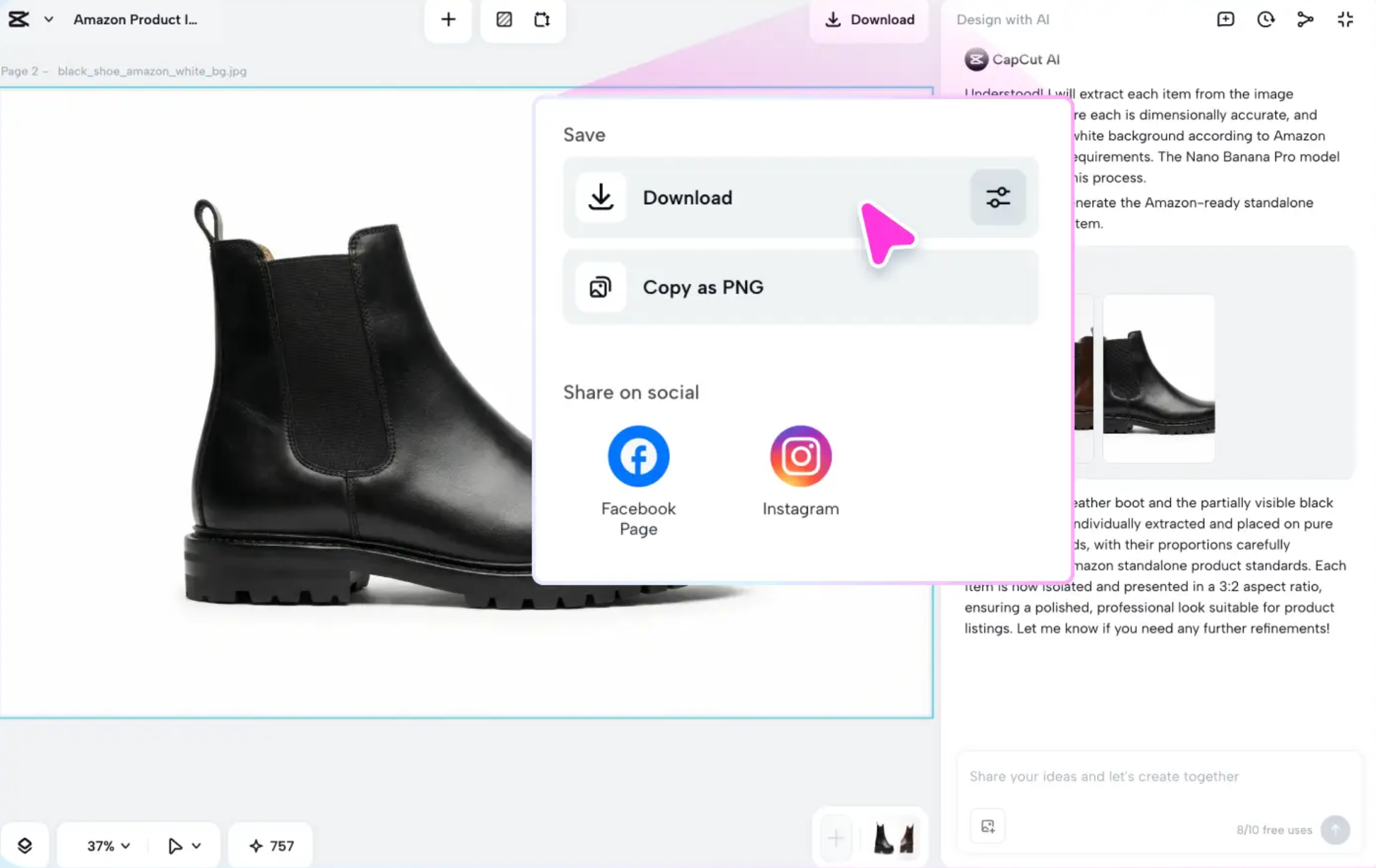
Step 3: Download and Share the Generated Image
When your images are ready, CapCut gives you tools to fine-tune them. You can:
- Adjust lighting and shadows
- Remove unwanted elements
- Improve background clarity
- Enhance colors
- Crop and resize
When satisfied, click “Download” to save your final image in high quality. You can now use these visuals to create your product video. If you want different angles, repeat the prompt with variations.
Turning Your Nano Banana Pro Images Into a Product Video
Now that you have your polished images, it’s time to turn them into a full video. This part is incredibly simple using CapCut Web’s video editor.
Here’s a quick workflow:
- Open CapCut Web Editor
Go to CapCut.com, click “Create,” and select a blank video project.
- Import your Nano Banana Pro images
Drag and drop your generated product photos onto the timeline.
- Add smooth transitions
Use fade-ins, zoom-ins, pans, or slide effects to add movement to your video.
- Insert captions or product information
Highlight selling points such as:
- Key features
- Dimensions
- Materials
- Benefits
- Price
- Brand tagline
- Add music and sound effects
Choose from CapCut’s built-in audio library to enhance the video mood.
- Export your final video
Choose the resolution (1080p or 4K recommended) and download your video. You now have a clean, polished promotional video that looks professional—created entirely with AI tools and a few simple steps.
Conclusion
CapCut Nano Banana Pro makes product video creation accessible to everyone, whether you’re a small-business owner, an Amazon seller, or a social media creator. With just a prompt, a reference photo, and a few clicks, you can generate studio-quality visuals and turn them into engaging videos that help your products stand out online. If you’ve been looking for a fast, effortless, and cost-effective way to create promotional content, Nano Banana Pro is one of the best tools you can start with today.