Since changing phones leads to lost chats and media, careful planning matters. People lose essential messages or photos because they skip careful steps. A slight mistake can cause missing chats, empty media folders, or broken backups. That’s why using a proper checklist ensures everything moves.
With helpful tools like Dr.Fone – WhatsApp Transfer, users can handle this process. Moreover, preparing both phones, picking the best method, and checking results prevents mistakes. In this article, we will explain how you can migrate WhatsApp to your new smartphone.
Table of Contents
- Part 1: What Does WhatsApp Transfer Success Mean for Your Data?
- Part 2: The Unpredictable Impact of Changing Transfer Methods
- Part 3: Why Is Migrating from Android to iPhone Unique?
- Part 4: When You Also Need “Transfer Data to New Phone,” Treat It as Two Projects
- Part 5: Dr.Fone WhatsApp Transfer + Dedicated Android→iPhone Guide for Higher Confidence
- Conclusion
Part 1: What Does WhatsApp Transfer Success Mean for Your Data?
When you transfer WhatsApp to new phone, success means more than phone setup. It ensures your entire chat history and even settings move to the new device. Messages, group chats, and attachments must appear exactly as before without missing data. Moreover, your chats stay encrypted, so neither WhatsApp nor Meta can read them.
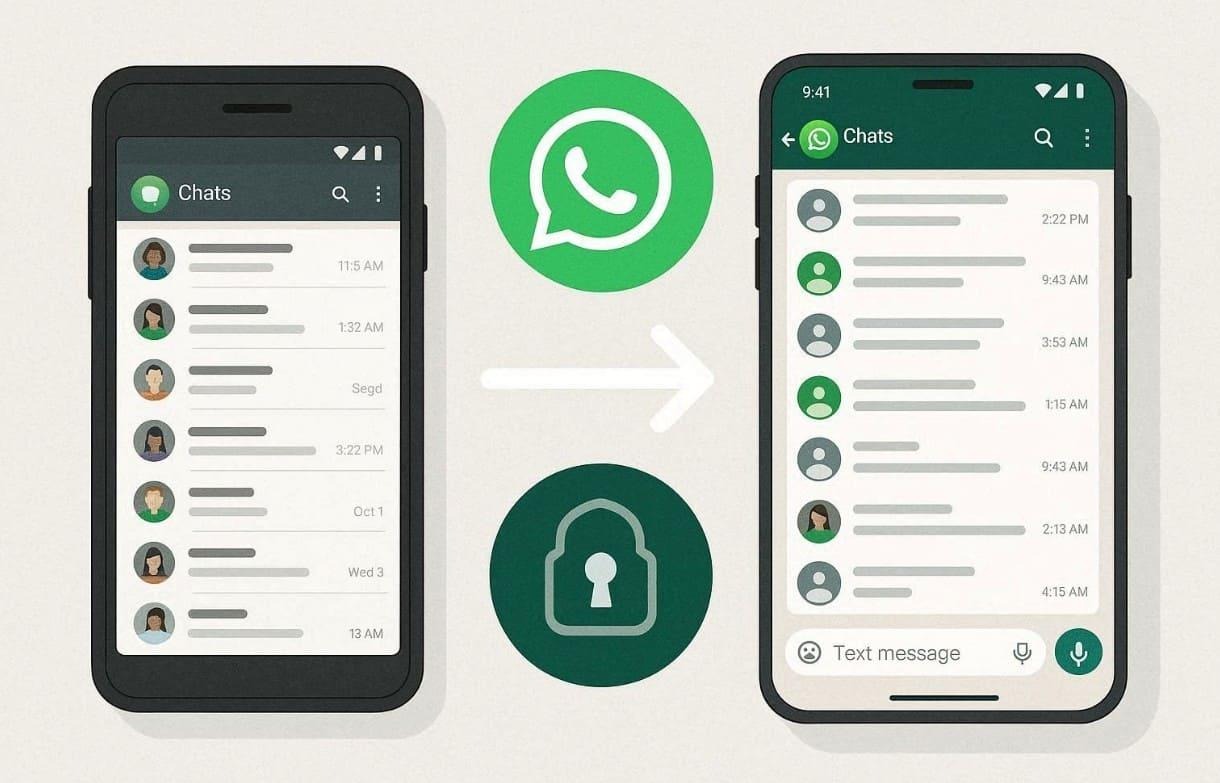
Your chat history is decrypted locally on the new phone, so you can read the messages immediately. Depending on the method, multimedia, voice notes, and stickers may also transfer. Even though messages travel between devices, metadata, like timestamps, remain visible. For complete safety, always enable encrypted backups before and after every successful transfer.
Part 2: The Unpredictable Impact of Changing Transfer Methods
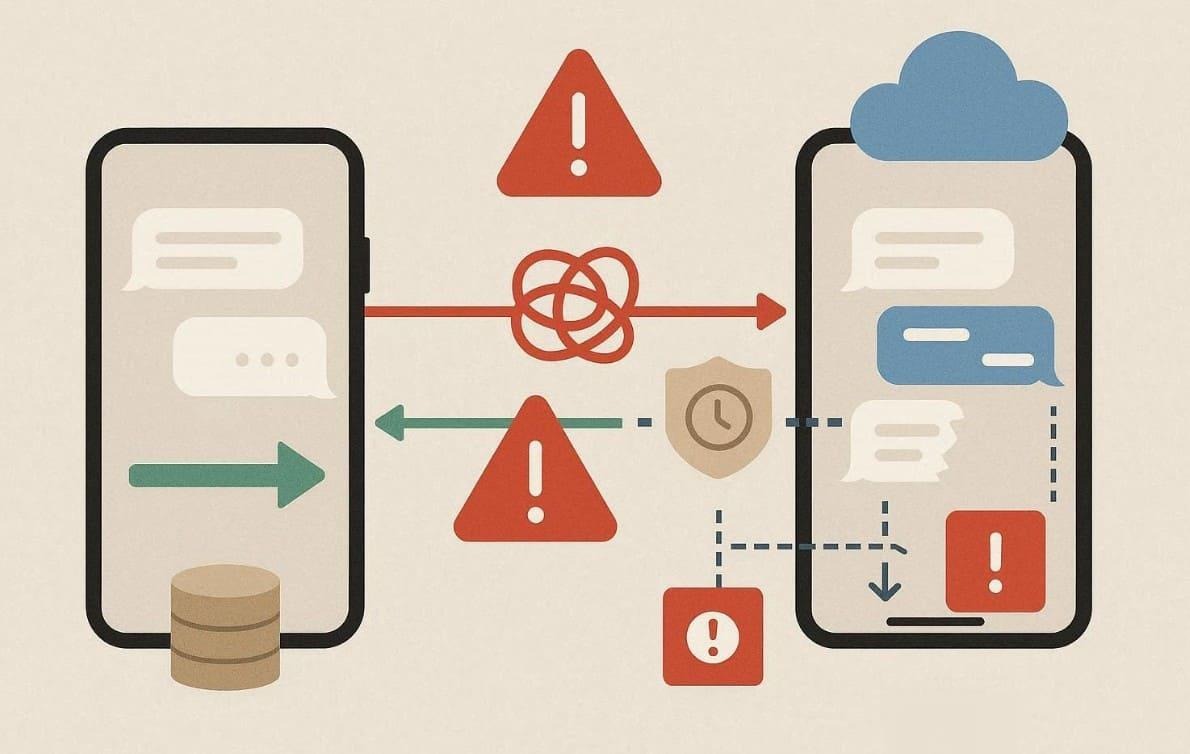
Switching between transfer methods during migration leads to broken chats and partial backups. Each method creates its own setup, so changing midway confuses the process. At this particular point, understanding the risks helps prevent data loss. When you plan to learn how to migrate WhatsApp messages from Android to iPhone, follow one method. Below are some common issues caused by changing transfer methods mid-process:
Also Read


- Method Conflict: Every method follows specific data rules that prevent smooth switching. When combined, they corrupt message states, confusing WhatsApp’s restore function.
- Incomplete Backup: Interrupted transfers leave older chats behind, creating gaps in stored messages. A fresh reattempt can restore that missing data because backups lose internal consistency.
- Verification Delay: Repeated method changes can trigger WhatsApp’s verification cooldown period. Users may be locked out, delaying access to their transferred messages.
- Database Error: Switching methods midway risks half‑written database files. Such corruption makes message loading slower and causes WhatsApp crashes or loops.
- Cloud Conflicts: Mixing cloud restore with device transfers can overwrite or skip data. Only the data present during the selected method reliably migrates to the phone.
Part 3: Why Is Migrating from Android to iPhone Unique?
Migrating WhatsApp from Android to iPhone is unique due to strict cross-platform requirements. The process uses Apple’s Move to iOS app to package and transfer messages. Unlike same-platform transfers, standard Google Drive or iCloud backups cannot be reused. Yet, the iPhone must be new or factory-reset and meet minimum OS and WhatsApp versions.
Moreover, both devices need the same Wi-Fi connection and power supply for the transfer. So, understanding these limitations is essential when you transfer data to a new phone. The following table summarizes key requirements and limitations for Android-to-iPhone migration:
| Feature / Requirement | Details | Notes |
| Transfer Method | Uses the Move to iOS app to move WhatsApp data | Cannot restore from Google Drive |
| Device Condition | iPhone must be new or factory-reset | Required for pairing during initial setup |
| OS & App Versions | Android OS Lollipop, SDK 21 or above, or Android 5 or above, and iOS 15.5 or above, including the latest WhatsApp version | Mismatched versions may stop transfer |
| Connectivity | Both devices are on the same Wi-Fi and plugged in | Ensures stable transfer |
| Privacy | Data remains unreadable to WhatsApp until iCloud backup | Android retains a local copy |
Part 4: When You Also Need “Transfer Data to New Phone,” Treat It as Two Projects
When you transfer WhatsApp to a new phone, remember that both migrations work differently. System tools move apps and contacts, while WhatsApp follows strict backup rules. So, treating both as one process causes data conflicts or missing chats. Plan them together, but execute separately for cleaner results. Thus, the points below explain how to manage both:
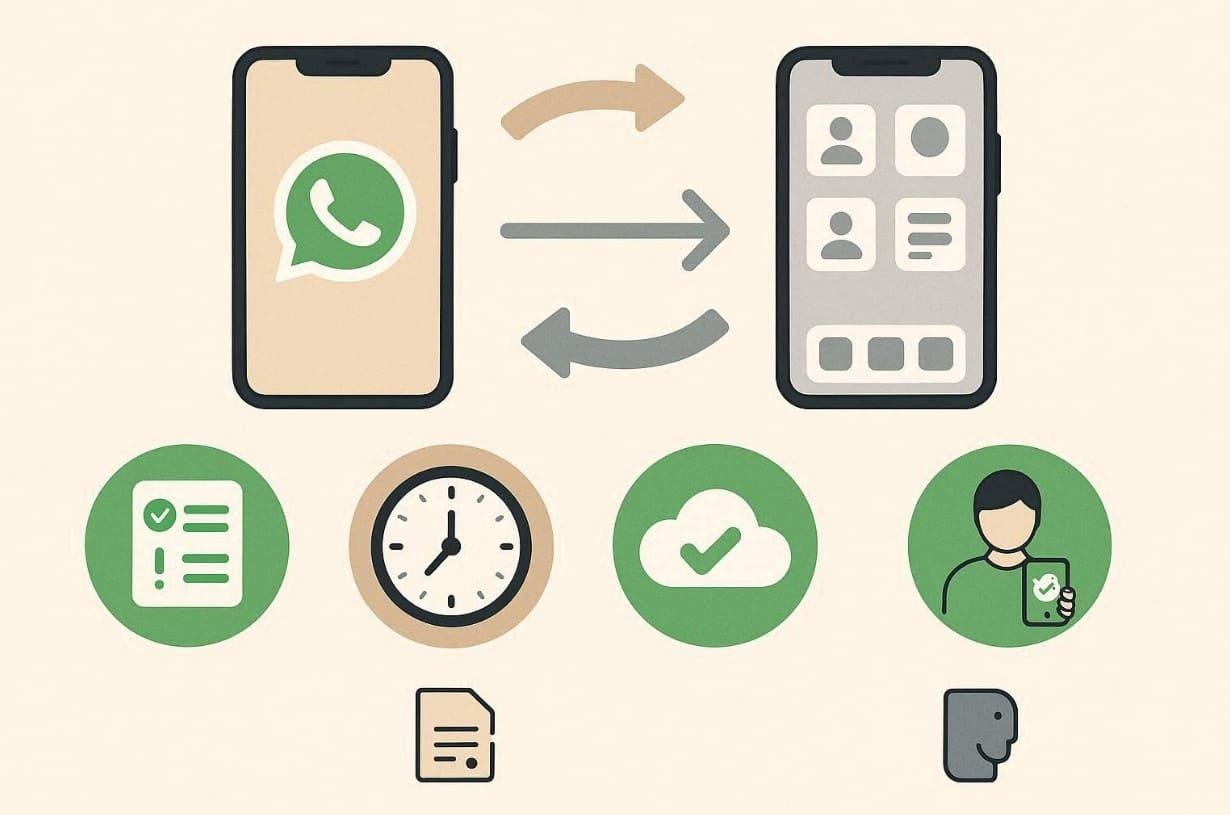
- Separate Goals: WhatsApp migration safeguards message integrity through an encrypted transfer. System transfers focus on broader data, which includes apps and multimedia content.
- Timing Order: Always complete your main device transfer before starting migration. Doing so avoids overwrite errors that occur when both systems move files together.
- Backup Check: Verify that backups exist for both device data and WhatsApp chats. Backups prevent permanent loss if an unexpected error occurs during the migration.
- Storage Space: Ensure sufficient free space on the new phone before transfers. Limited space can stop full-device and WhatsApp migrations mid-process.
- Verification Step: After all transfers are complete, check chat and app data access. Verifying success prevents unnoticed losses and confirms perfect completion integrity.
Part 5: Dr.Fone WhatsApp Transfer + Dedicated Android→iPhone Guide for Higher Confidence
If you have already planned your WhatsApp migration, the next challenge is execution. Even with preparation, compatibility errors or incomplete chat moves can occur mid‑process. That’s when reliable software becomes essential to keep media and chats intact. To avoid failure, using Dr.Fone – WhatsApp Transfer offers confidence across devices. It delivers ultra‑fast transfer speeds for new models like iPhone 17 and Galaxy S25 series.
During migration, you can even choose specific chats or attachments to your new phone. Dr.Fone’s encrypted transfer ensures WhatsApp data remains safe during movement. For backup purposes, users can also export chats as PDF or HTML files for reference. You will even be able to preview WhatsApp call logs and choose specific ones to include or skip.
Key Features
- Business Support: Transfers WhatsApp Business chats and files between Android and iPhone.
- Wide Compatibility: Supports Android 16 and iOS 26 versions to ensure broad compatibility.
- Data Merging: Combines existing and old WhatsApp messages into one chat history timeline.
Simplified Tutorial to Transfer WhatsApp from Android to iPhone via Dr.Fone
Go through the given guide to learn how to transfer WhatsApp to a new phone using the WhatsApp Transfer tool of Dr.Fone:
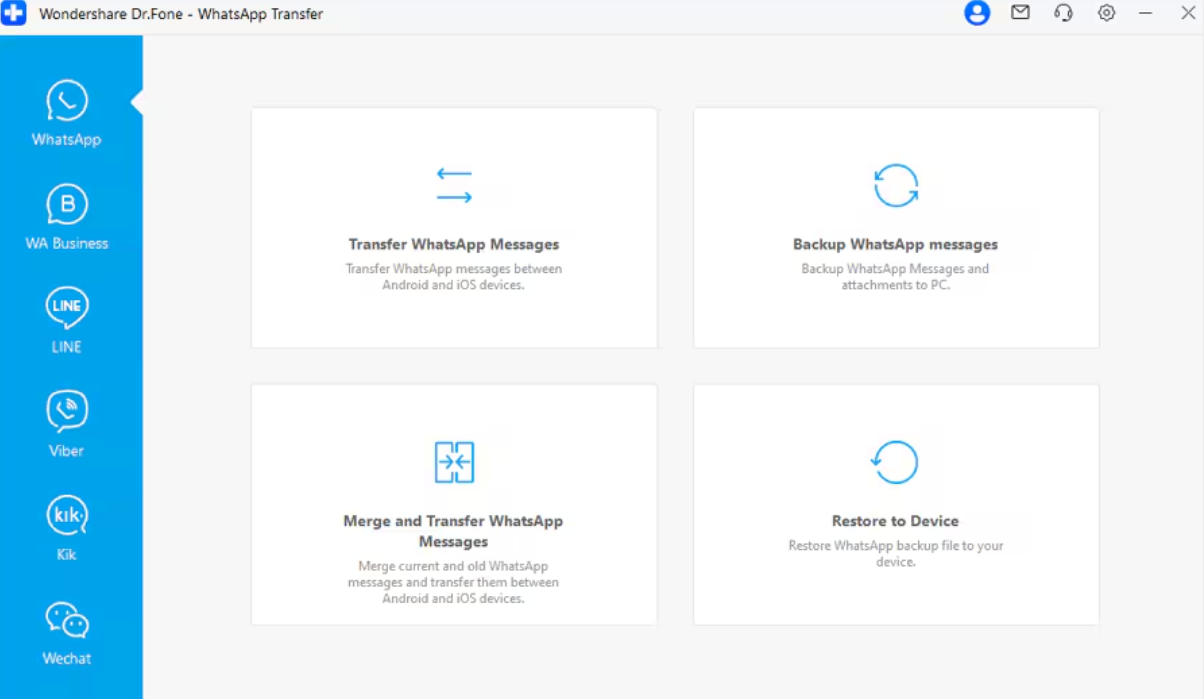
Step 1. Open the WhatsApp Migration Feature
Upon accessing the “Toolbox” section, navigate to the “WhatsApp Transfer” feature. As you see the new display, select “Transfer WhatsApp Messages” and connect both Android and iPhone.
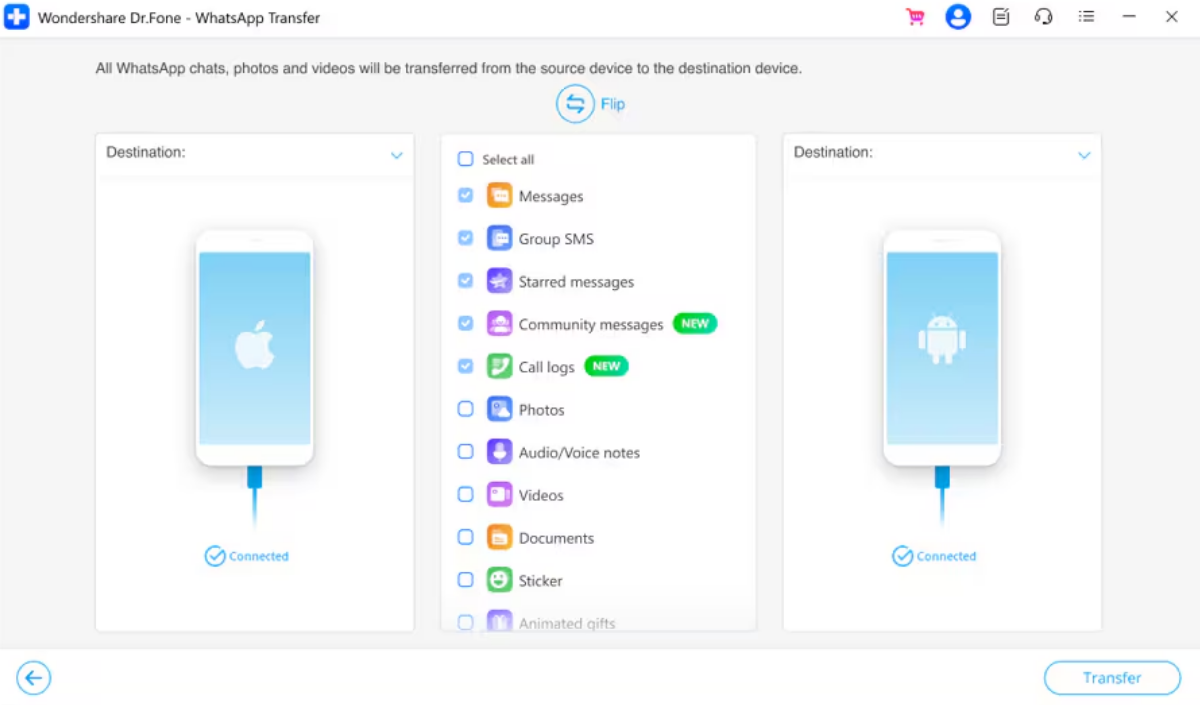
Step 2. Choose WhatsApp Data for Transfer
After a while, review the available WhatsApp data to select what you want to move and press “Transfer.”
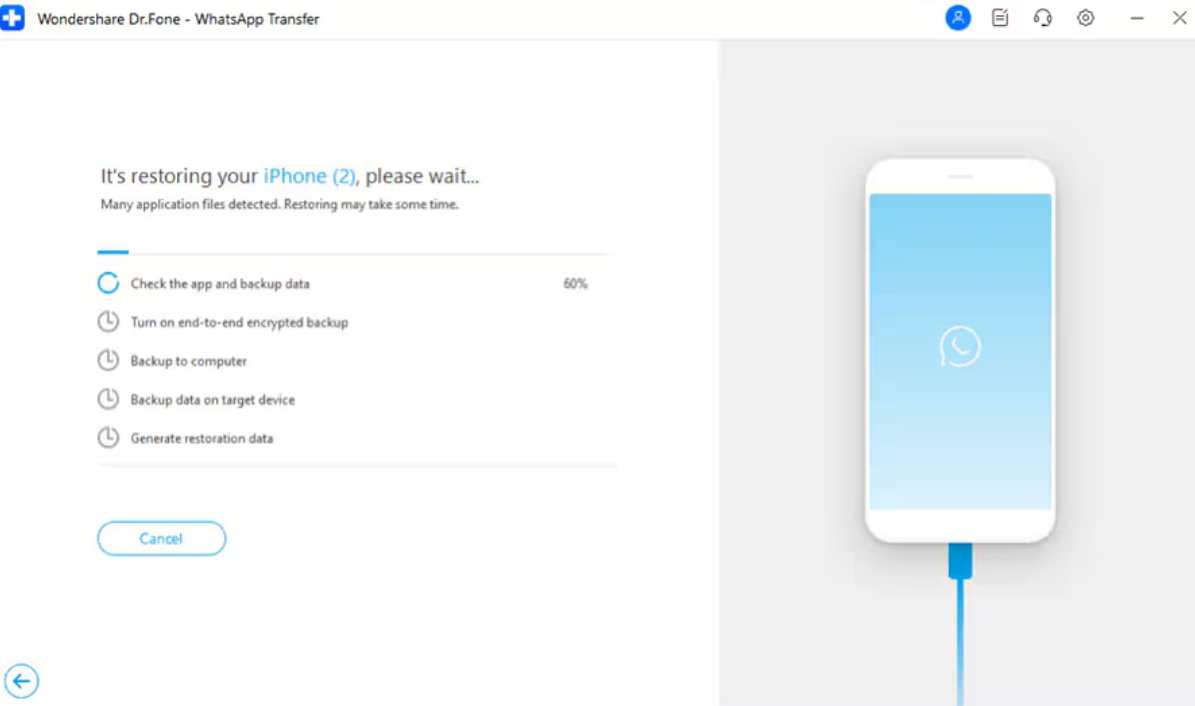
Step 3. Finalize the WhatsApp Transfer
Dr.Fone will then initiate transferring and merging the selected WhatsApp data to your iPhone efficiently.
Conclusion
In conclusion, moving WhatsApp needs planning because rushed transfers cause missing data. Yet, following clear methods helps protect data and even keeps backups complete overall. Also, checking results after transfer saves time by catching problems before deleting. Android-to-iPhone moves need extra care due to limited tools and setup rules. That is why Dr.Fone – WhatsApp transfer becomes useful for simple and reliable execution.